PDF documents are truly ubiquitous. With their help, all kinds of manuals, manuals, official and company documents are distributed in the network. No wonder, because after all, PDF files have many advantages, such as convenience, compatibility with a wide range of hardware and software, and the immutability of formatting.
In addition, an important advantage of the PDF format is security, in the case of this format, you can easily change the security settings of documents. In a word, it is worth investing in an application that allows you to view PDF files – especially if we are talking about a business or official environment.
Nowadays, PDF is one of the most popular file formats. We use PDF files to create ebooks, manuals and even photo galleries. A presentation, web brochure, data, or any externally referenced document is much more helpful if linked to sources. In addition to incorporating multimedia into your document, you can also use animated PDFs and videos.
Creating a PDF file is quite easy in Windows 11, we will talk about creating a regular PDF file in this article.
SwifDoo PDF
SwifDoo PDF is the primary tool for creating a PDF in Windows 11. And it does allow you to edit PDF files by itself as well. It comes with a set of other features that most users need for basic PDF editing and conversion.
Program features
- Convert an Office file (Word, Excel, PowerPoint) to PDF
- Image to PDF conversion
- PDF compression
- Split and combine PDF files
- Convert a website to a PDF file
- Delete, reorder, rotate
- Compare two PDF files
- Setting password and permissions
- PDF signature
SwifDoo PDF is the best tool for editing and creating PDF files, and the 15-day free trial will allow you to do the right work with the file.
How to create a PDF file in Windows 11?
Almost any type of files, including Word documents and web pages, can be converted to PDF with a specific PDF converter program. Windows or macOS systems allow the “print to PDF” option, this option also exists in many office suites. Converting PDF files with available tools is usually easy.
Those less experienced in design can easily create a PDF using programs such as Google Drive and MS Word. When creating Microsoft Word documents, you can simply select “save as PDF file format”. There are also more advanced PDF tools like Adobe Acrobate and SwifDoo PDF that allow you to create your own PDF files in Windows 11.
For example, if you’re preparing something for professional printing, SwifDoo PDF is a very popular PDF creator if you want more control over how your PDFs look. You can open them with any PDF viewers that support this format.
Here are the steps to create a PDF in Windows 11 using the Create PDF feature:
Step 1: Launch the SwifDoo PDF program on your Windows 11 computer. And navigate to the Create option.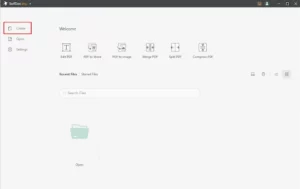
Step 2: Select a specific option to create a PDF file. 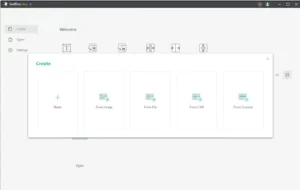
Step 3: Now custom the file name and select the directory where you want to save the PDF file and other metrics that you want to set up. And then hit the Confirm button.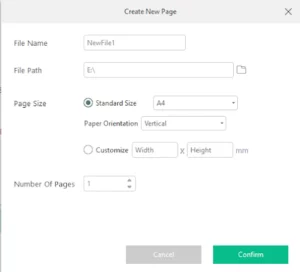
Step 4: A new PDF file has been created now.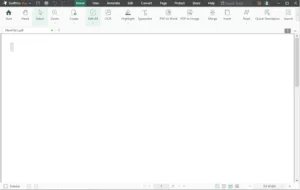
So, if you want to create a PDF in Windows 11, the SwifDoo PDF software has everything you need. We also have to mention that the program is compatible with almost every Windows system.
How to edit and convert PDF files in Windows 11?
You need a specialized program to edit the PDF after it has been created. SwifDoo PDF is the most popular PDF editing program. Simple PDF files can be edited in Microsoft Word, but there may be some problems if they contain a lot of graphics.
To change the contents of a PDF file, editors such as SwifDoo PDF can be used to convert it to another format. When you convert a PDF, it no longer exists as a PDF and is instead saved in a different format such as docx.
You can also use an online PDF converter like the SwifDoo PDF Online Converter. You don’t need to install any software on your computer to convert PDF files. You only need to upload the file to the online converter and it will convert it to any other file format you need.
In sum
PDF files are easy to read and print, but much more difficult to parse their contents in plain text. Fortunately, there are many good, ready-to-use libraries, thanks to which we can do practically everything with PDF files – from extracting text data, through finding the X,Y coordinates of specific elements, to converting them to well-known formats.
Compared to a regular PDF without any multimedia, creating an interactive PDF is much more enjoyable. Instead of overwhelming your audience with large plain text, interactive PDFs provide an enjoyable reading experience with images, videos, and music, etc.

I am a content writer with proven experience in crafting engaging, SEO-optimized content tailored to diverse audiences. Over the years, I’ve worked with School Dekho, various startup pages, and multiple USA-based clients, helping brands grow their online visibility through well-researched and impactful writing.